Browse articles
Schedule product and page templates
Point selected products or pages at another template on the live theme, then switch them back.
Template swaps
Included on Pro.
A template job does what the Theme template menu in the Shopify product or page editor does, on a timer. At the start time each selected product or page switches to an alternate templateAlternate templateA theme file such as templates/product.black-friday.json that a product or page can use instead of the default.. At the end its own template comes back.
Before
Snowboard
productAt the start
Snowboard
product.black-fridayAt the end
Snowboard
product- 1
Make the template first
In the theme editor, create a template such as product.black-friday on the published theme. Easy Launch cannot create one.
- 2
Pick the template and items
Go to Templates → Create template job. Choose the product and/or page template, then tick what should use it.
- 3
Schedule
Set the start and, usually, the revert. Press Schedule job.
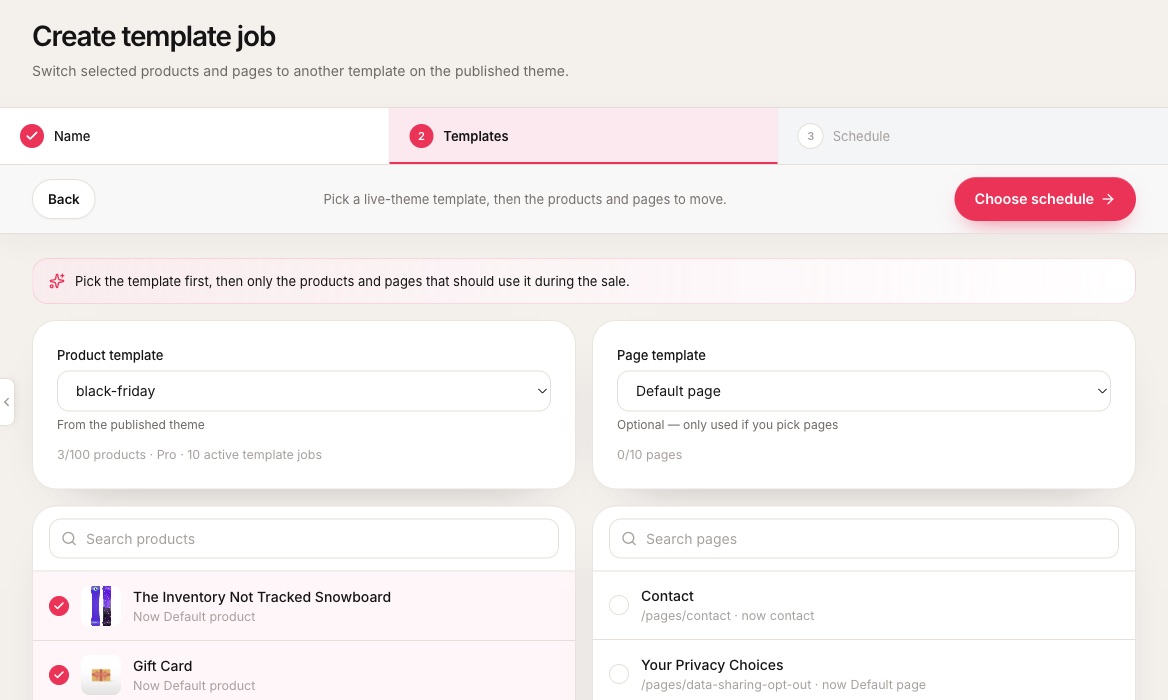 1Product template from the live theme.2How many products this job uses of your plan’s limit.3Page template. Optional, used only if you pick pages.4Each row shows the template the item uses now.
- 1Product template from the live theme.
- 2How many products this job uses of your plan’s limit.
- 3Page template. Optional, used only if you pick pages.
- 4Each row shows the template the item uses now.
| Plan | Active template jobs | Products per job | Pages per job |
|---|---|---|---|
| Grow | 3 | 25 | 4 |
| Pro | 10 | 100 | 10 |
Related
Schedule and revert
The start time writes the sale. With revert on, the saved originals come back at the end time.
Campaigns and the launch desk
Run prices, templates and product drops as one launch, with a checklist, a shareable brief and a report.
Plans and upgrading
Free proves one sale. Essentials opens every market, Grow the season, and Pro the full launch desk.